Characters and import options
Importing a character
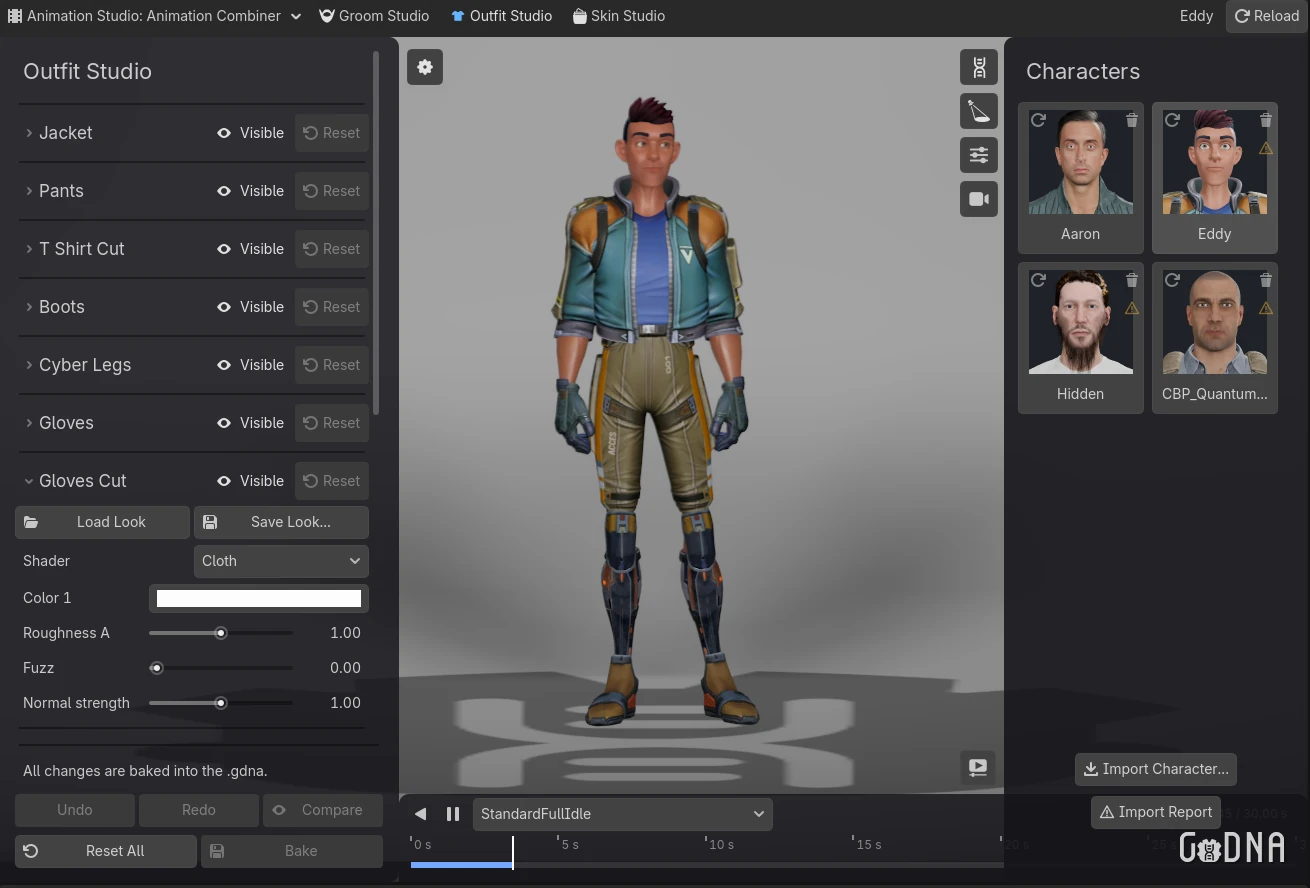
From the Characters drawer
The Characters drawer in the GoDNA tab lists every character in res://GoDNA/humans/ as a
preview tile.
- Import Character... picks an exporter
.gdnaanywhere on disk (in the folder you exported to) and copies only the files the manifest references intores://GoDNA/humans/<Name>/. If the character is already there, it asks before replacing it. - Character Creator (CC4 / CC5) characters need no Unreal step: export the character from Character Creator
as FBX with its textures, then pick that
.fbxin Import Character.... The.jsonand thetexturesfolder Character Creator writes next to it come along: they give the character its materials (skin, eyes, hair colours, eye occlusion and tear lines as Character Creator sets them up) and its face shapes. Replacing a character keeps what you baked in the studios. - Dropping a
.gdnafrom the FileSystem dock onto the drawer imports it the same way. - A tile stays disabled until Godot has finished importing. Click it to load the character into the studio.
- The reimport button (top left of a tile) imports the character again, for example after updating GoDNA or replacing its FBX files. For the character in the view, it asks first if a studio has unbaked changes.
- The trash button moves a character's folder to the system trash after a confirmation. The export in Unreal is untouched.
- Import Report (under Import Character..., for the loaded character) shows what the importer built and what to
fix:
- Animation retargeting: whether the character has every bone Godot's humanoid profile needs, so Mixamo and other humanoid animations retarget onto it, and which optional bones (eyes, jaw, upper chest) it lacks.
- Skeleton: bones kept and removed (face joints, deformation helpers, unrecognised bones). Removed bones' skin weights move to the nearest kept parent.
- Meshes: bones per vertex, face shapes, vertices that had more than 8 bones, and surfaces left out.
- Warnings from the import, and materials that could use GoDNA's shaders.
-
Map Bones... (a button in the Import Report) is for skeletons GoDNA doesn't recognise by name. GoDNA knows Unreal's humanoid names (MetaHuman, UE5 Mannequin and characters made for them) and Mixamo's; a character with other names (a 3ds Max Biped, a Blender rig, a Unity character...) still imports, with every bone under its own name, but animations don't retarget onto it until its bones are mapped:
- Click Map Bones.... Each humanoid bone has a list of the character's bones, indented as in its hierarchy. The required ones (bold) are shown first; Show all adds the spine, neck, eye, jaw, twist, finger and toe bones.
- Guess Empty Ones fills the bones that have none from their names (pelvis, spine, clavicle, upper arm, forearm, thigh, calf, foot... with left and right). Check what it picked.
- Save and Reimport writes the map into the
.gdna(bone_map) and imports the character again. The source files aren't changed, and the map is kept when the character is exported or imported again. Reset removes the map.
A bone can only play one humanoid bone. Mapping can also fix a recognised character, for example to use another bone as the neck. Grooms attach to
Head, so they come in once it is mapped. To check the result, set Pose in the Camera drawer to Rest Pose (see Camera). - A warning badge under a tile's trash button means the import report has something to look at, or surfaces could use GoDNA's shaders. Point at it for a summary; click it for the report.
By hand
Copy the whole export folder (the .gdna, meshes/ and textures/) anywhere inside the Godot project. Godot
imports the .gdna as a 3D scene. Textures must be inside the project; the importer warns about any it can't
find.
The imported scene
Ada (Node3D, GoDNAHuman)
├─ GeneralSkeleton (Skeleton3D, 103 bones)
│  ├─ Body
│  ├─ Head            # face, teeth, eyes; the ARKit blend shapes
│  ├─ Clothes/<piece>
│  ├─ Grooms/<groom>  # hair cards
│  └─ Grooms/Eyelashes
└─ AnimationPlayer    # its own animation (an iClone motion) and packed ones (Character Animations, Animation Combiner)
- The root has the GoDNAHuman script. It adds the twist, head and eye modifiers at runtime, so you don't wire anything up.
- Materials are assigned by kind (skin, eyes, teeth, hair, eyelashes, cloth) using the shaders in
addons/godna/shaders/. They read the textures and parameters recorded from Unreal (see Skin, eye and teeth shaders; GoDNA Lite uses StandardMaterial3D). - Surfaces Unreal hides (
M_Hide) are left out, as are pieces you hid in the material studios. - Animation in the character's own file (an iClone motion exported with a Character Creator character) comes
in on the AnimationPlayer, retargeted like any FBX animation: the body moves, and the face's expressions play as
ARKit shapes. Held poses (Character Creator's "Open A" pose stack) are left out. In GoDNA Pro it is also
copied once into
GoDNA/animations/body/<Name>/andGoDNA/animations/face/, so Body Studio, Face Studio and the Animation Combiner list it. To export one from iClone, put the motion on the timeline and export the character as FBX with its motion.
Import options
Select the .gdna in the FileSystem dock and open the Import dock. Besides Godot's usual scene options, the
GoDNA section has:
| Option | Default | Meaning |
|---|---|---|
| Setup Retargeting | On | Sets Godot's BoneMap (human_humanoid_identity.tres) and Rest Fixer options so retargeted animations play on the character. Leave it on. |
With Setup Retargeting on, the character keeps its Unreal A-pose rest. Hand-made settings in Advanced Import Settings (a BoneMap you set yourself) are left alone.
Hair and eyelash meshes don't get Godot's generated LODs (they made patches of hair vanish when zooming). Body, head and clothes keep them.
Reimporting
Godot reimports the .gdna when the manifest changes, for example after a Bake or Pack in the GoDNA tab.
Changed FBX files don't trigger a reimport
Godot's scene importer API can't declare the FBX files as dependencies. After replacing the FBX files by hand,
press the reimport button on the character's tile in the Characters drawer, or right-click the .gdna >
Reimport.